Internal Tools
Window Mapper
A tool I built to help our team work out how to turn an unfamiliar storefront into a large digital display, from projector placement to content resolution.
- My role
- Developer and maintainer
- Project state
- Production
- Technologies
- React / TypeScript / SVG / Canvas / FFmpeg
Work out what a storefront needs
At Visual Feeder, we turn vacant urban storefronts into large, street-level digital screens for advertising. Every space is different, so planning a campaign starts with working out how to cover its windows with projection. I built Window Mapper to make that assessment quicker and let more of the team answer practical questions without needing deep projection-mapping experience.
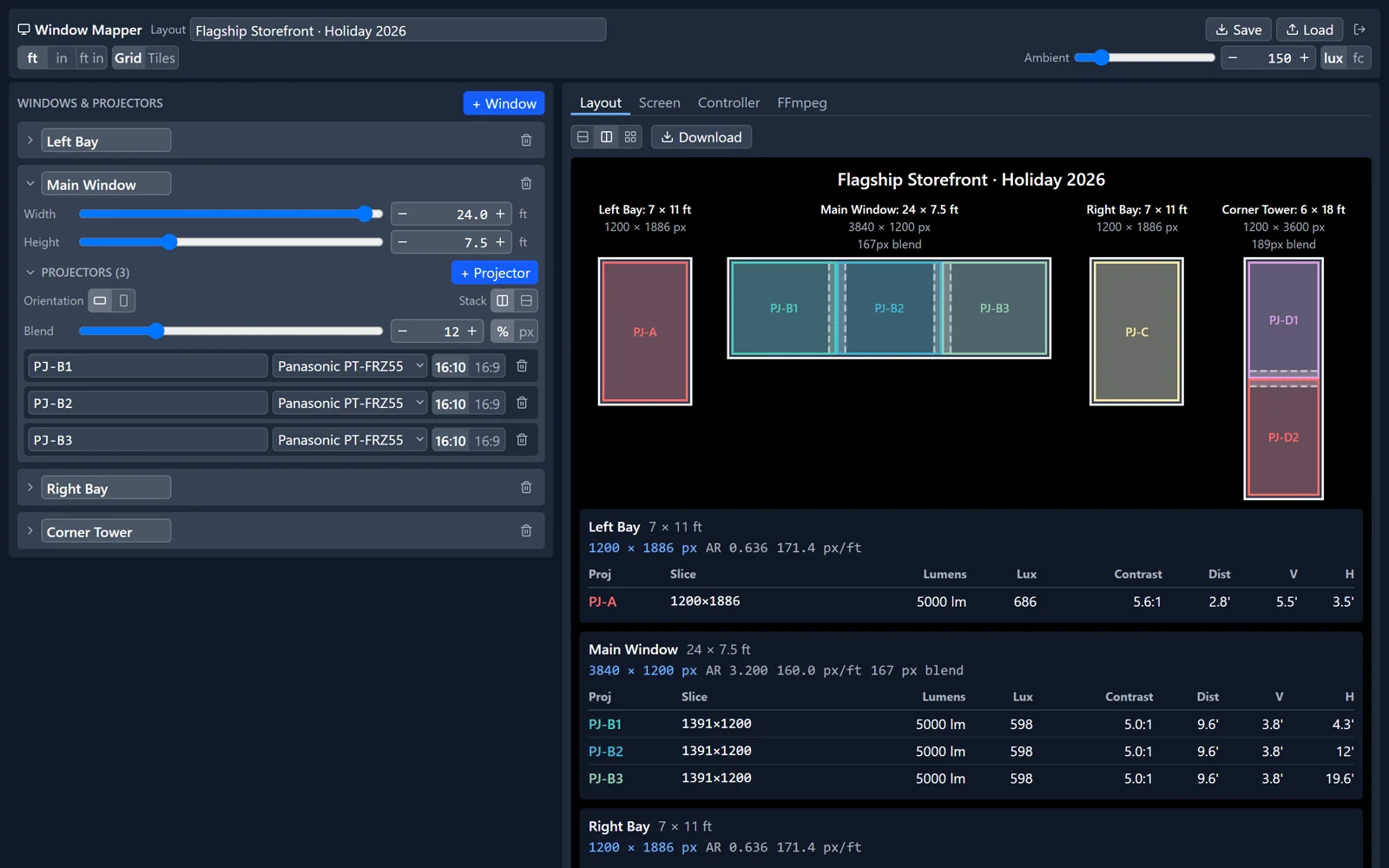
Real interface with a demo storefront of four windows and seven projectors. Sign-in was stubbed for capture. The recording demonstrates planning and generated commands, not connected hardware or an executed video render.
Watch: Plan a storefront from start to finish · 2 minutes 13 seconds
Plan a storefront from start to finish
Follow a demo storefront through the decisions we make when planning a location, from sizing the windows and trying projector arrangements to checking brightness and preparing the outputs.
What happens in the recording
- Size a window, add projectors, and adjust the overlap for edge blending.
- Load a saved storefront and switch layout views and measurement units.
- Add a tall window with portrait projectors stacked vertically.
- Adjust ambient light to compare estimated contrast.
- Inspect grid and numbered-tile patterns, including a single projector and rear-projection flips.
- Reassign controller outputs and inspect the generated FFmpeg commands.
View screenshots: Layout sheet and controller map
Layout sheet and controller map
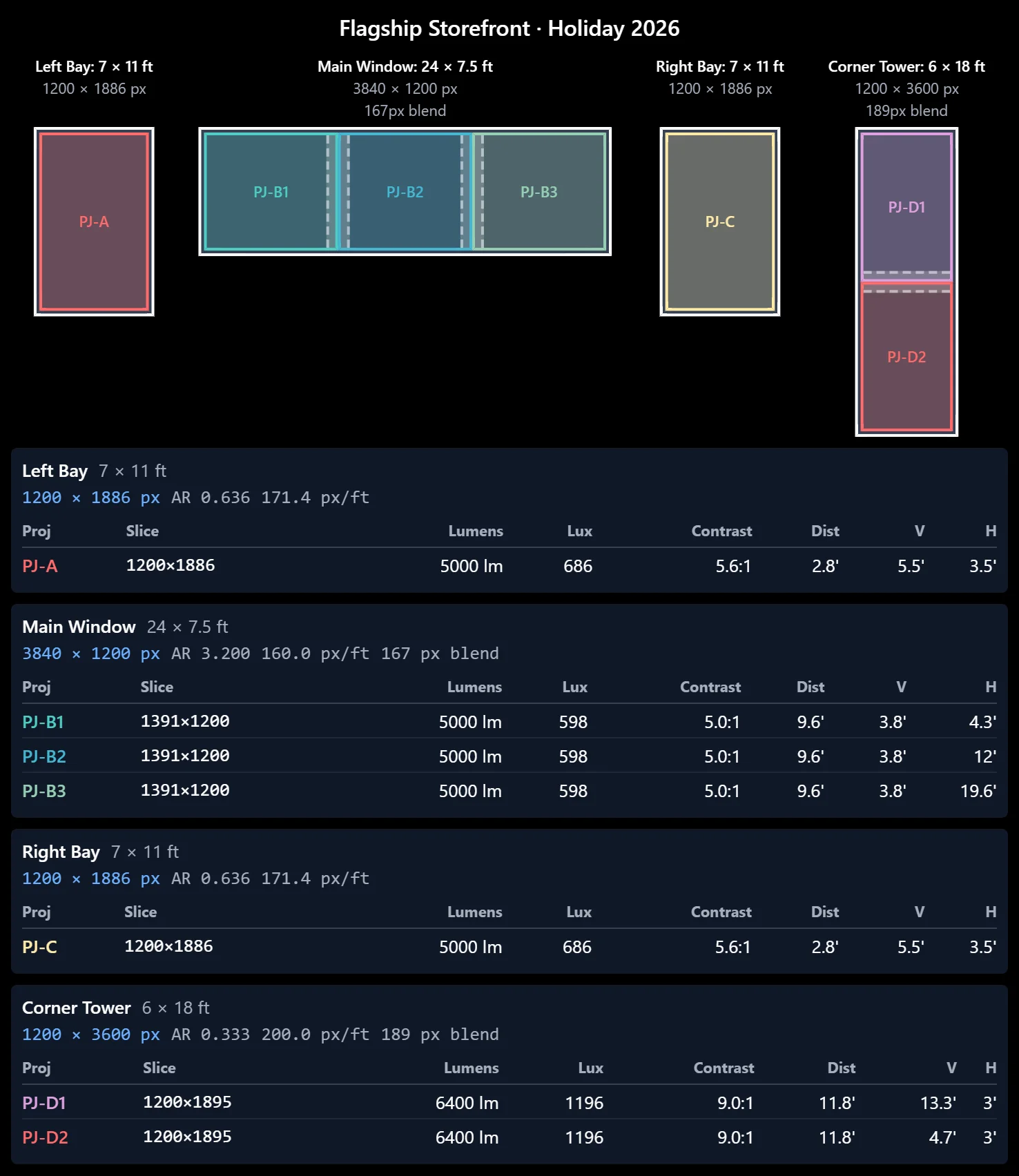
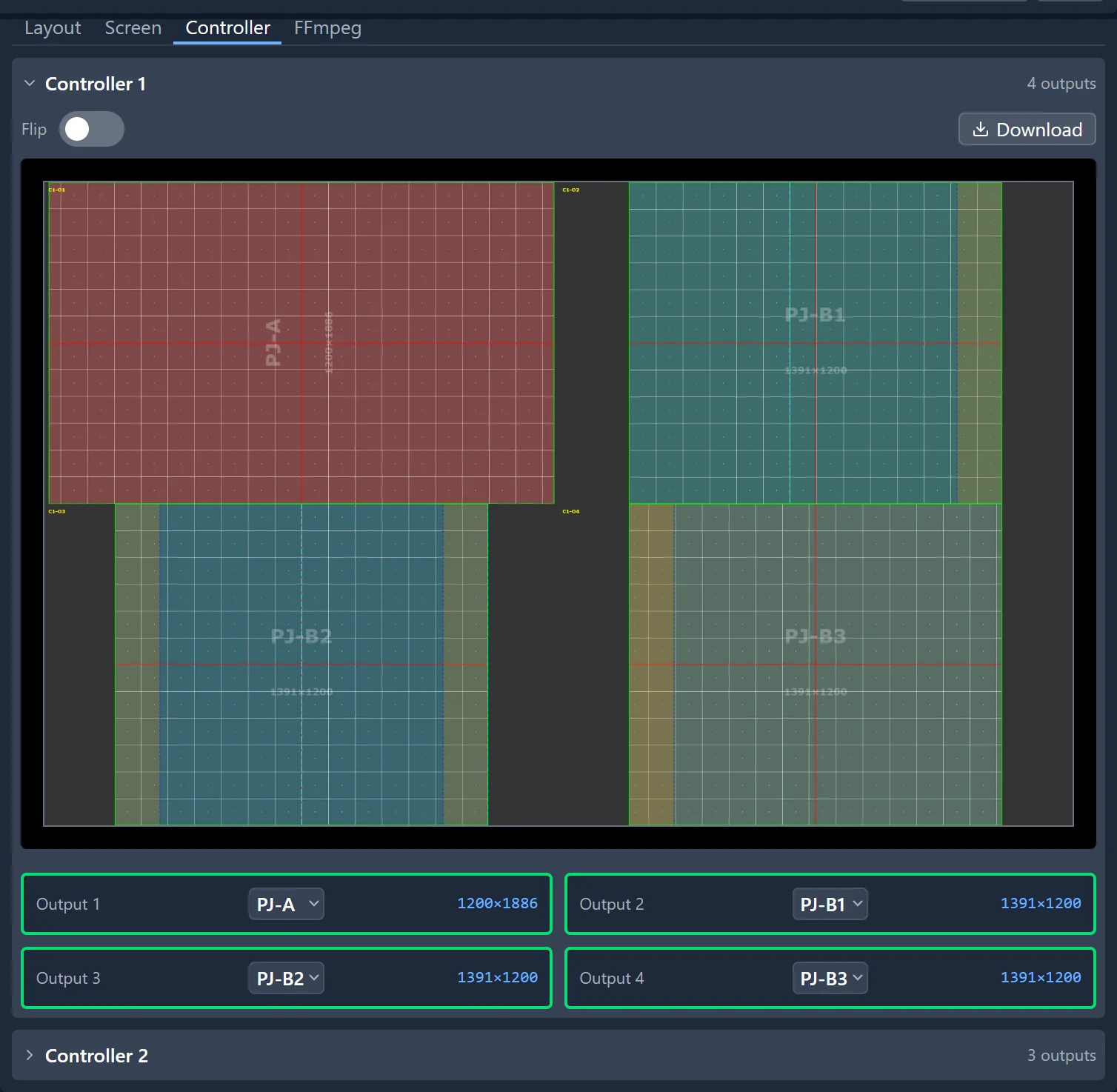
Once we have a configuration to work from, the layout sheet gives teammates the measurements they need, while the controller map shows how to connect the video outputs.
View screenshots: Check the plan on site
Check the plan on site
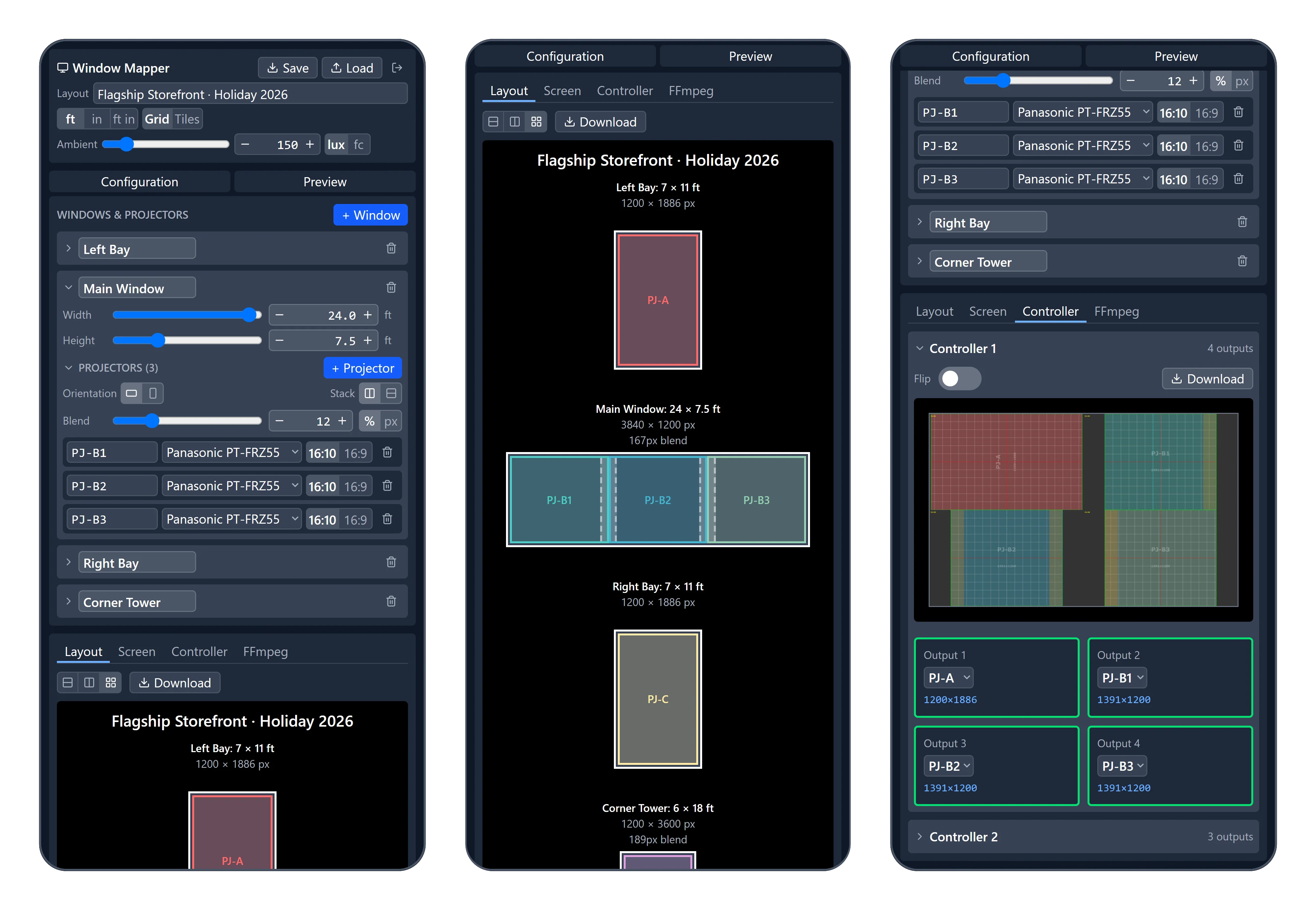
These questions often come up while visiting a space or away from a desk. The mobile interface lets us check a saved plan and try changes while we are there.
Start with the space we actually have
Our storefronts rarely have standard screen dimensions. A location might combine wide panes, narrow windows, and tall sections separated by frames, with limited room behind the glass. Before committing to a setup, we need to understand how many projectors could cover it, which arrangements are practical, and whether they can provide the brightness we want.
The shape and size of those windows dictate the screens we need to cover. Window Mapper starts with those dimensions and automatically fits the projector output to them. It handles several window screens in one plan, including the portrait orientation, side-by-side arrangements, and vertical stacks we regularly need to cover different storefront shapes.
The aim is to get as much useful light as possible onto the glass. The tool calculates the closest projector placement that still covers the required area, keeping the image from spreading unnecessarily beyond the screen and making the most of the available illuminance. For each projector, it gives us the distance from the screen, height, and lateral position, accounting for the overlap where several images meet.
From that fit, it also calculates the screen resolution and estimates brightness and contrast at a specified ambient light level. We can then compare the placement measurements with the space available inside the storefront and assess whether the equipment will deliver the brightness we need.
Give the team answers they can use
One of the most frequent questions is what resolution a client should use for the digital assets they send us. With windows of different shapes and several projectors sharing a screen, that answer depends on the layout. Because Window Mapper calculates the screen resolution alongside the projection geometry, a teammate can get the content dimensions directly from the plan.
That is a large part of why I built it: to make the projection knowledge behind our installations usable by people who do not work with AV systems every day. They can explore a location, compare equipment arrangements, and answer routine planning questions themselves, with a diagram and measurements to discuss with the installation team.
Take the plan through to installation
A location’s configuration often needs another look as a campaign develops. We can save the layout, share it with teammates, and load it later to try a change without rebuilding it from scratch. An exported diagram keeps the measurements together, and the mobile interface makes the same information useful when someone is checking the space on site.
Once the layout is settled, the tool also produces alignment patterns and maps projectors to the video controllers that feed them. It uses the same geometry to generate FFmpeg commands for cutting and arranging the source videos, so content preparation follows the plan. Those commands run separately; Window Mapper supplies the configuration and outputs we need to carry the work forward.