AI & Software
Moka Pot
A tool for turning storefront photos into signage mockups. The outreach team can prepare each location for our inventory without waiting for a designer.
- My role
- Sole developer and product owner
- Project state
- Production
- Technologies
- React / TypeScript / Jotai / Express / Gemini / Canvas API / Vitest
I built Moka Pot for the outreach team at Visual Feeder. It helps them show what a vacant storefront could look like with digital signage in its windows. These mockups become part of our location inventory and appear in sales pitch decks. I designed the workflow, built the application, and maintain it in production.
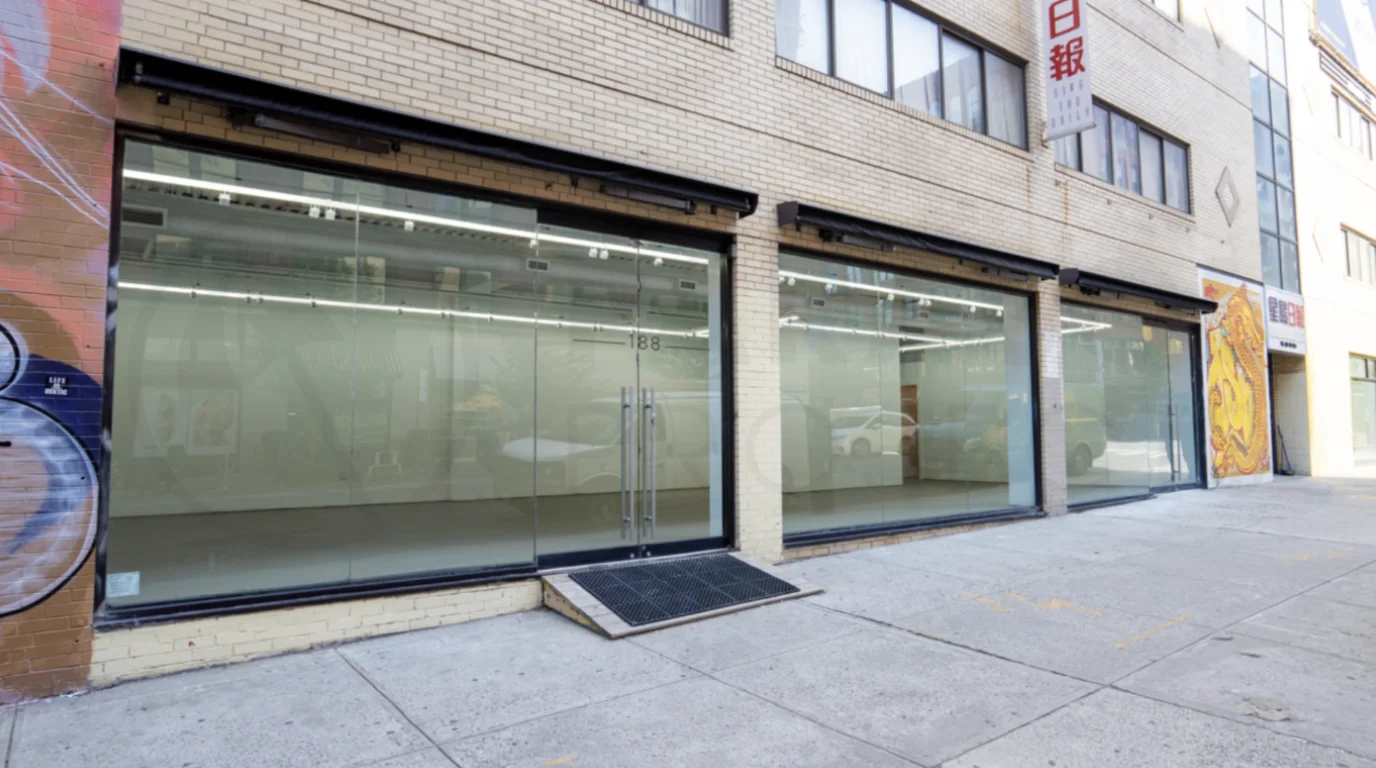 Original photo
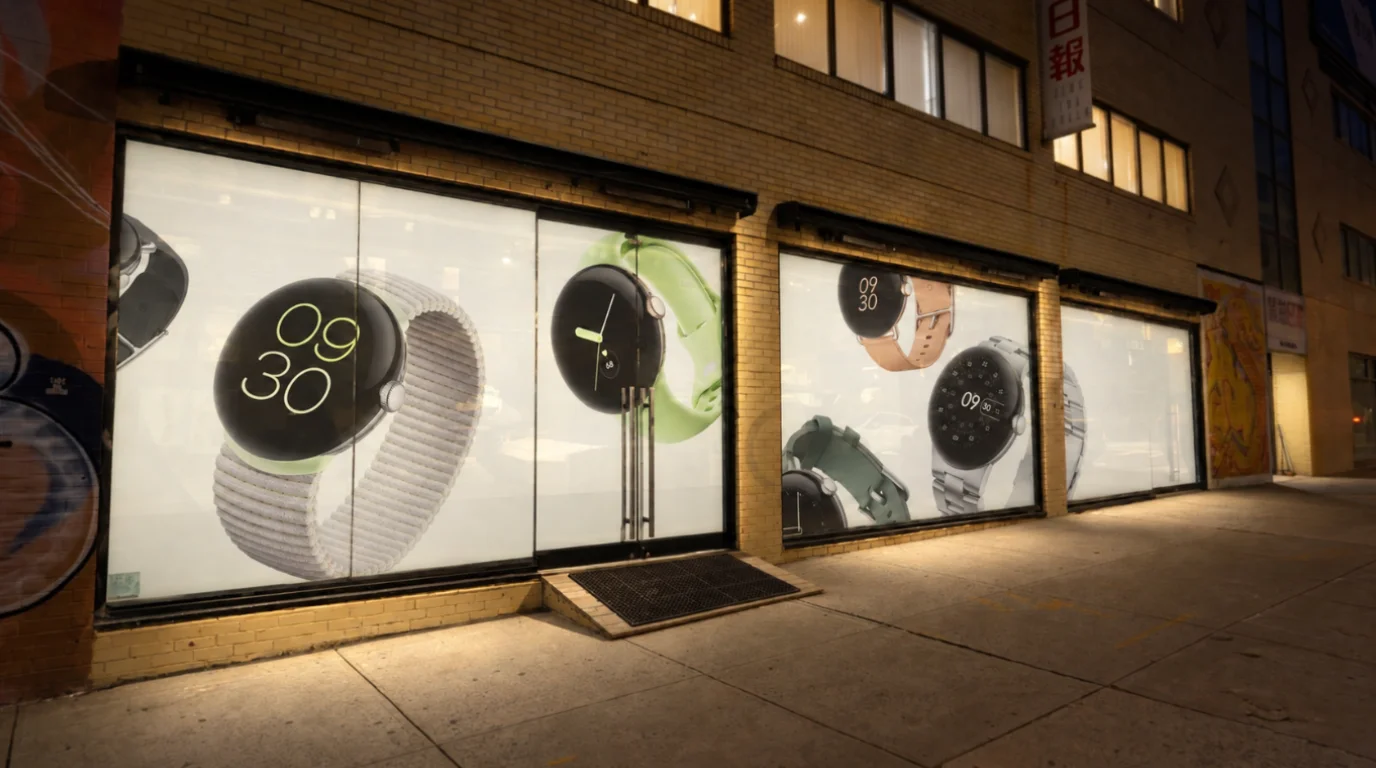 Generated mockup
Where the mockup fits
Our outreach team finds vacant retail spaces and contacts their brokers or owners about potential partnerships. When an owner is interested and provides a rate, the team adds the location to our inventory. We call this onboarding.
As part of that process, each location gets a mockup. It shows how the space could look during a campaign, using placeholder artwork in the windows.
Separately, our sales team responds to incoming RFPs and prepares pitches. They choose suitable locations from the inventory and include their mockups in pitch decks, alongside creative concepts.
Previously, our sole designer made all of these location mockups. The work competed with creative concepts and client proposals. Routine mockups either waited behind higher-priority work or took time away from it.
Give people control over the image
Moka Pot takes the user through the process one step at a time. They start with a storefront photo and choose a crop. They can then adjust the lighting before selecting the windows that will display the artwork.
The model detects the windows, but the user can correct its selections by moving their corners. They choose which windows to use and supply the artwork. After each generation, they can compare the result with the image that went into that step. Optional steps can be skipped.
The goal is to show the actual location. A realistic-looking image is not useful if the model has changed the camera angle, moved a window, or redrawn part of the building.
Keep the original detail outside the windows
Each time an image model redraws the whole scene, it can lose some of the original detail. Surface textures become softer, and small features can change shape. Sending that result through another generation can compound the problem.
To reduce this, Moka Pot combines two images after the artwork transformation: the image that entered the step and the result returned by the model. The selected window shapes act as masks. Inside those shapes, the app uses the transformed result. Outside them, it keeps the input image.
This preserves the surrounding scene without asking the model to reproduce every brick, sign, and edge. The combined image then goes into the next step, where the model can add light spilling from the windows onto nearby surfaces.
Check for unwanted changes
The app also checks whether the generated scene has changed too much during artwork installation or the light-spill step. If a check flags a result, the app tries that step once more using the same input image.
If the second attempt is also flagged, the app shows the result with a warning. The user can inspect it and decide whether to try again.
These checks can catch some large changes to the scene. They cannot confirm that every logo is accurate or every window edge is intact, so the finished mockup still needs a person’s review.
Complete onboarding without a design handoff
The outreach team can now handle the process from the first contact with a property owner through to a completed inventory entry, including its mockup. They no longer need to hand routine image work to the designer and wait for it to come back.
That leaves the designer more time for creative concepts and client-specific work. The sales team gets a location image that is ready to include when the space is selected for a pitch.
The linked engineering writeup goes deeper into how the application manages work across steps, handles retries, and keeps model requests on the server. It also discusses how to evaluate the quality of generated images.